


Less than a month ago a new version of Sniffnet was released, and
among the most notable introduced feature there’s the possibility to forward in-app notifications via webhook.
This is useful, for instance, when you are away from your computer and want to be informed about its network activity.
Or maybe you’re running Sniffnet on a server and want to receive notifications on your main workstation.
Or even you’re a network administrator in need to be alerted about events happening on multiple machines.
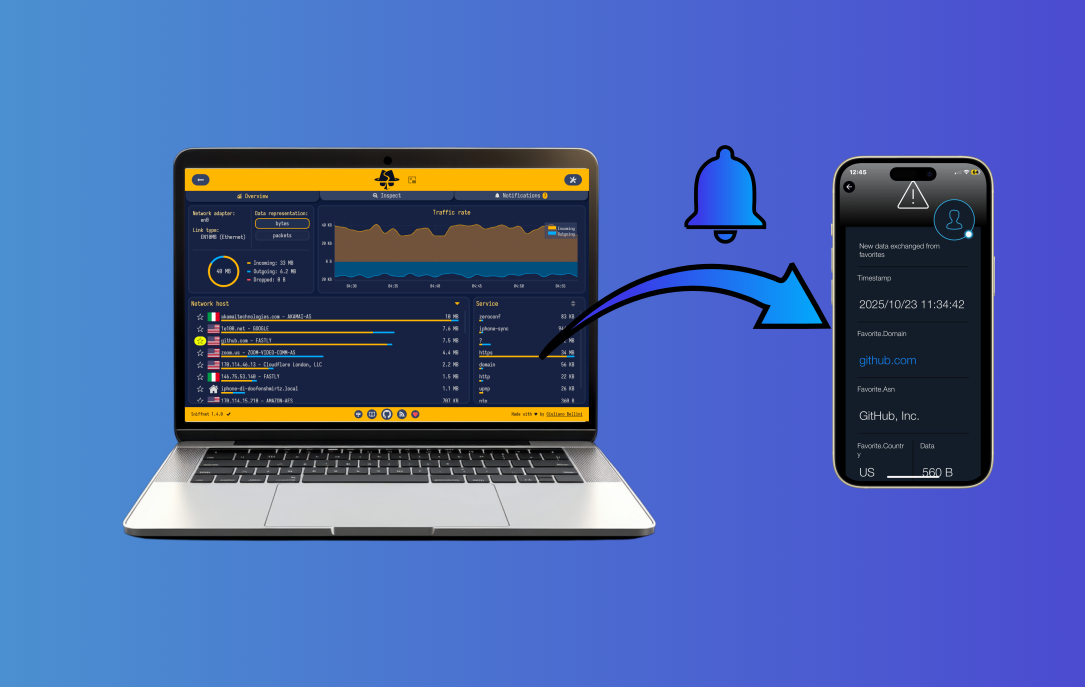
Today you’ll understand how Sniffnet makes this possible, and you’ll also learn how to get the most out of built-in notifications by setting up advanced packet filter programs.
The only prerequisite is to install Sniffnet 1.4.2.
If you already downloaded it, sit back and have a good read!
Introduction to webhooks
For a long time Sniffnet allowed its users to be warned about certain network events in the form of in-app notifications.
While this is useful to get alerts on the monitored machine, it doesn’t allow one to be notified remotely.
To fill this gap, support for remote notifications via webhook was added recently.
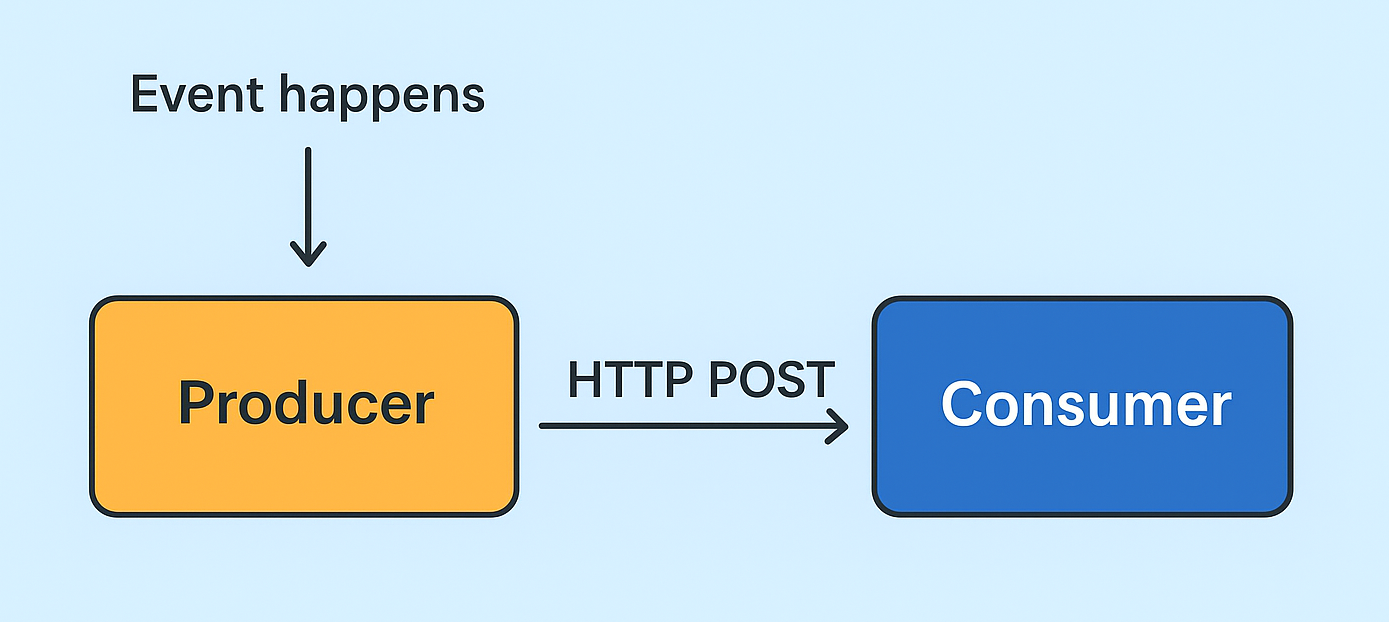
A webhook is a real-time, automated message sent from one app to another, acting as a notification mechanism to
signal that an event has occurred.
The webhook producer (Sniffnet in this case) sends an object (typically in JSON format) containing the event details to a
consumer, which listens for messages at a given endpoint and shows them to the user.
Webhooks are powerful yet simple in how they are conceived: in practical terms they consist of
HTTP POST requests sent to a URL — this means that you could even set up your own server to handle such messages in a custom way.
Since creating a custom web server is beyond the scope of this blog post, the first step we need to take is determine which service to use as the consumer of Sniffnet’s alerts.
Said in a different way, we need a solution that makes available for us a pre-configured URL to receive webhooks:
Svix,
IFTTT,
and SIGNL4 are some examples of enterprise-ready services,
but if you’re just playing around and want to test things out you can also look at something ready-to-use like Webhook.site.
Setting up the webhook consumer

In this tutorial we’ll use SIGNL4, an application that can run on all modern smartphones
and displays webhook notifications in an intuitive way.
It comes with a free plan that supports our use case, and it’s characterised by a straightforward setup,
as described in the following.
- Install SIGNL4 on your smartphone from the App Store or Google Play.
- Create a new account (you can even sign up using Google or Microsoft).
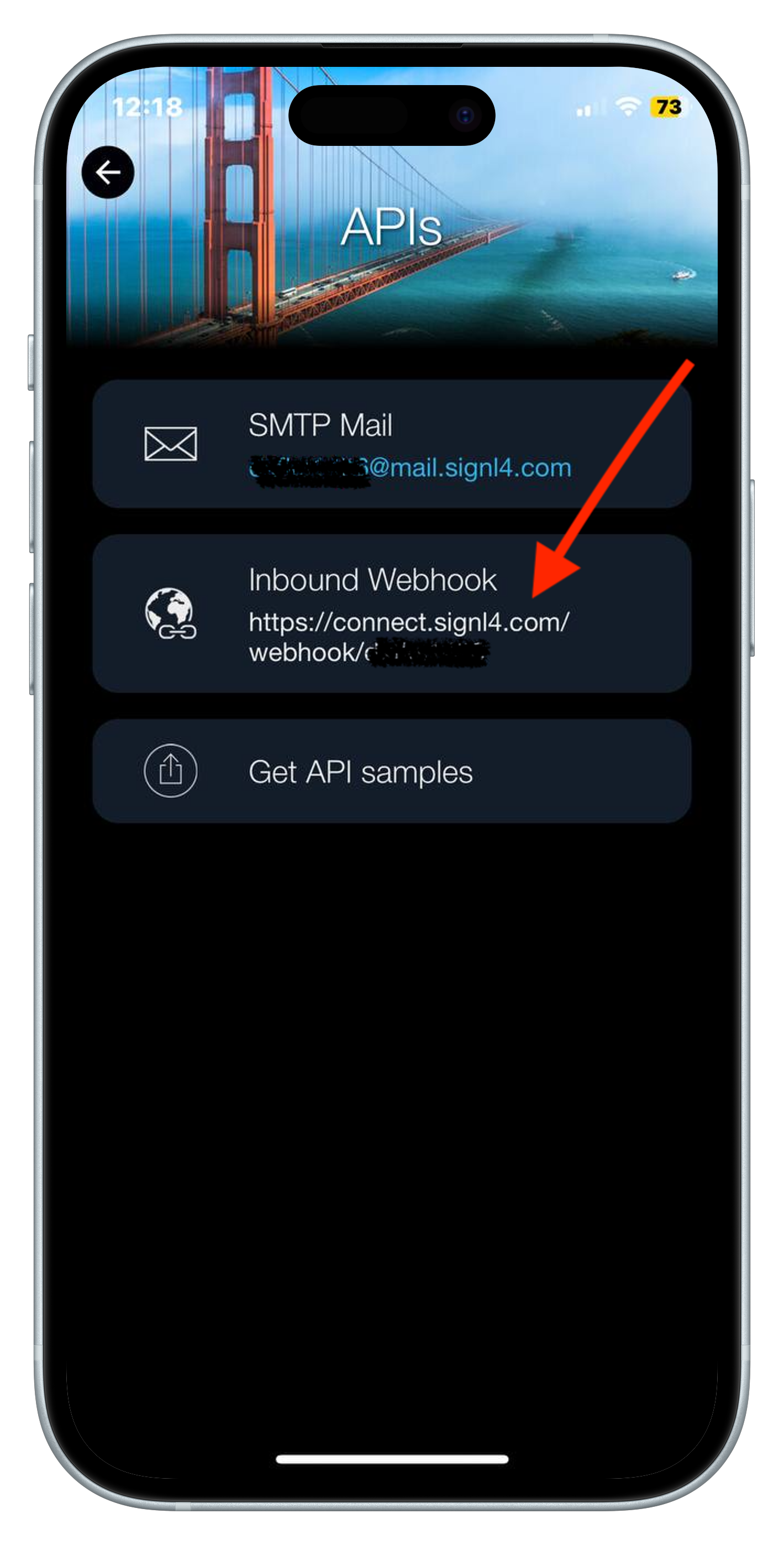
- Once logged in, click on the button in the top right corner to access settings, then select the “APIs” tab.
- There you’ll find your unique webhook URL in the “Inbound Webhook” section; write it down somewhere, as we’ll need it later.
Feel free to explore other SIGNL4 settings, as you can customize alerts categories, notification preferences, and more.
Configuring Sniffnet
Now that we have a webhook URL ready to receive notifications, it’s time to configure Sniffnet to send them out.
- Open Sniffnet and head to the settings by clicking on the button at the top right.
- Select the “Notifications” tab.
- Enable the events you want to be alerted about: you can learn more about them in the Notifications Wiki page.
- In the same settings tab, enable the “Remote notifications” toggle, and paste the SIGNL4 URL you got from the previous section.

At this point, Sniffnet is all set to send webhook notifications to the configured endpoint.
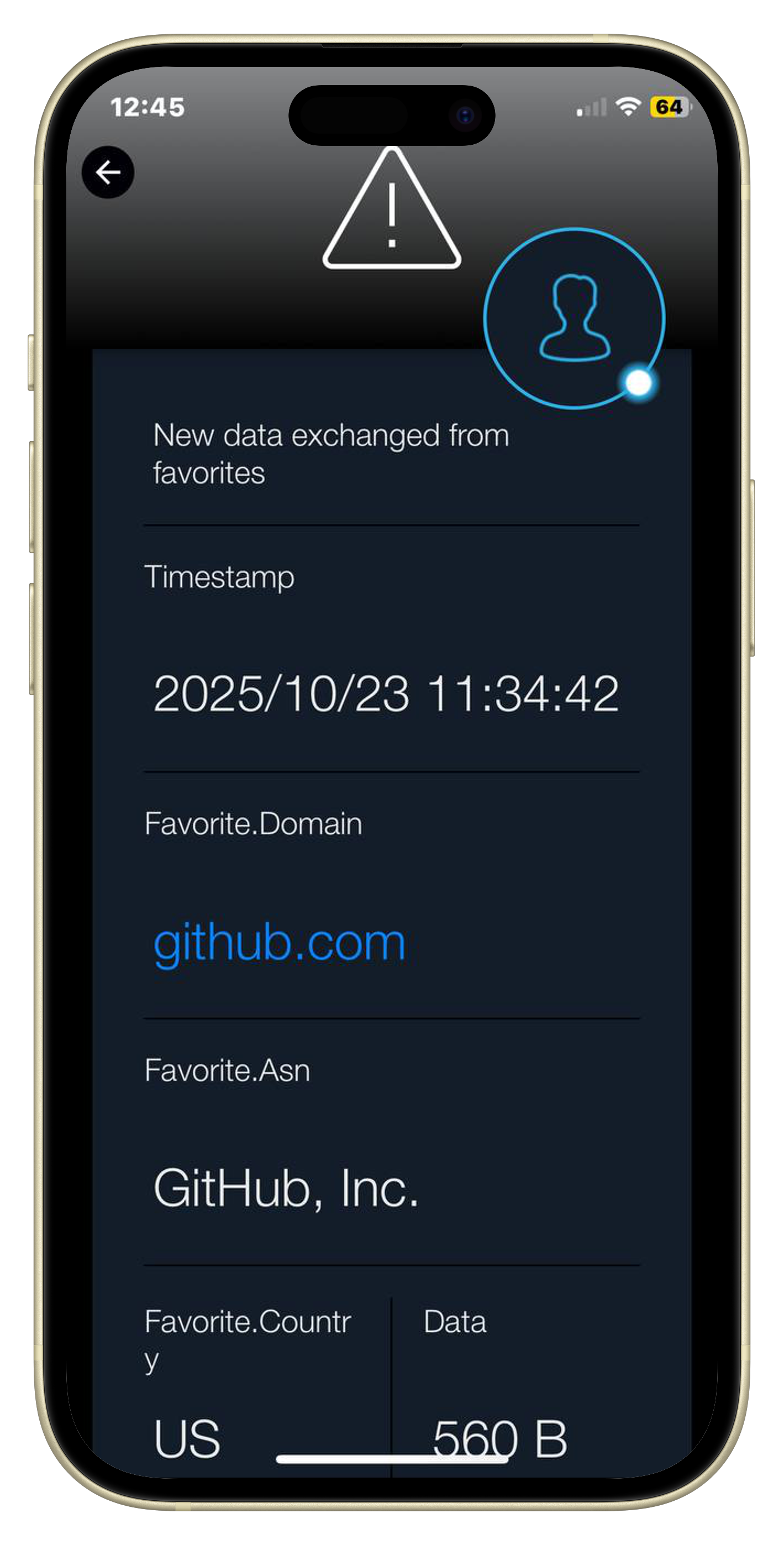
Below you can see a sample notification received on the SIGNL4 app when activating the “New data exchanged from favorite” alert and saving github.com as favorite in Sniffnet.
Enhancing notifications with packet filters
Among the available notification types, Sniffnet support alerts when a specified data threshold is exceeded.
In general, this is useful to be informed about large downloads or uploads happening on the monitored machine.
However, if you want to closely track a certain kind of traffic, you can leverage filters to refine when such notifications are triggered.
Packet filters programs are routines that run inside Sniffnet and inspect each packet to determine whether it matches given criteria.
Such programs follow the Berkeley Packet Filter (BPF) syntax, a standardized, powerful, and flexible way to specify the traffic you want to monitor.
Online you can find many resources to learn BPF syntax: this IBM guide is a good starting point.
Once you’re familiar with the syntax, setting up a filter is simple and can be done from Sniffnet initial screen as described in the Filters configuration Wiki page.
As an example, let’s say you want to be notified whenever your machine opens a new TCP connection to a server running on port 22 (SSH).
To do so, you can set a filter like the following one:

This program checks whether the TCP flags field (the 14th byte of the TCP header, hence the index 13) has the SYN bit set (indicating a new connection) and whether the destination port is 22.
With this filter in place, Sniffnet will only monitor packets matching such criteria:
in this scenario, you can set the notifications data threshold to zero to effectively get an alert for every new SSH connection attempt.
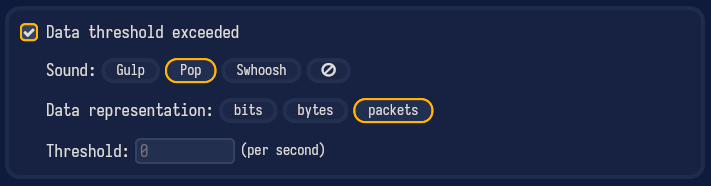
If you followed the steps in the previous sections, you won’t only receive in-app notifications on the monitored machine, but also webhook alerts on your smartphone via SIGNL4, allowing you to keep track of your machine’s network activity even when you’re away from it.
Wrapping up
Getting remote notifications from Sniffnet is a powerful way to monitor your machine’s network activity from afar.
By leveraging webhooks and packet filters, you can customize alerts to fit your specific needs and stay informed about important events happening on your system.
Among the features planned for the near future there are custom IP blacklists and enhancements to favorites, which will further extend Sniffnet’s alerting capabilities.
If you have in mind more events of interest to trigger a notification, don’t hesitate to share your ideas.
This post is the first tutorial-like article published on the blog, and I hope you found it useful.
I may consider writing more tutorials in the future, especially targeted at covering the app’s most advanced use cases.
I wish you all a joyful holiday season in advance and, as always, happy sniffing!